
Many musicians think they need expensive software for a studio-quality sound. But, you can get incredible results with just the tools in your digital audio workstation. Learning how to manage your signal flow is key to getting a logic pro tone without paid plugins.
By organizing your effects well, you can turn simple recordings into tracks ready for the radio. This guide will show you How to Build a Guitar Plugin Chain in Logic Pro (Pro Tone Without Paid Plugins). We’ll cover everything from setting input levels to advanced mixing techniques that make your guitar parts stand out.
You don’t have to spend a lot to get the sound you love from your favorite records. With a clear plan and practice, your stock library can be incredibly powerful.
Key Takeaways
- Stock software offers professional-grade audio quality for guitarists.
- Proper signal flow is more important than expensive third-party gear.
- Setting correct input levels prevents digital clipping and harsh artifacts.
- Strategic use of EQ and compression defines your final sound.
- Consistent practice with stock tools improves your overall mixing skills.
Preparing Your Signal Path for Optimal Recording
To learn how to build a guitar plugin chain in Logic Pro, start with your signal path. A clean signal is key to professional tones. Without it, even top software can’t sound real.
Setting Input Levels and Gain Staging
Gain staging is crucial to avoid digital issues. Aim for input levels at -10dBFS during loud playing. This keeps your signal clear and strong.
Hit the red, and you’ll get harsh distortion. Always check your interface meters before recording. This helps your plugin chain react well to your playing.
Choosing the Right Audio Interface Settings
Your audio interface settings are vital for your guitar’s sound. Make sure to use the “Hi-Z” or “Instrument” input switch when plugging in.
This setting matches your guitar’s pickups to the interface. Without it, your sound will lack clarity and life. It keeps your tone rich and natural.
Monitoring Through Logic Pro Effects
Monitoring through effects lets you play with the final tone in mind. Enable software monitoring in Logic Pro to hear your amp and pedals live. This helps you adjust your playing to fit the virtual rig’s sound.
| Setting Type | Recommended Action | Benefit |
|---|---|---|
| Input Gain | Peak at -10dBFS | Prevents digital clipping |
| Input Mode | Select Hi-Z/Instrument | Maintains signal integrity |
| Buffer Size | Set to 64 or 128 | Reduces latency for feel |
Mastering these steps makes learning how to build a guitar plugin chain in Logic Pro easier. Calibrating your hardware ensures your plugins sound their best.
Utilizing Logic Pro Amp Designer for Core Tone
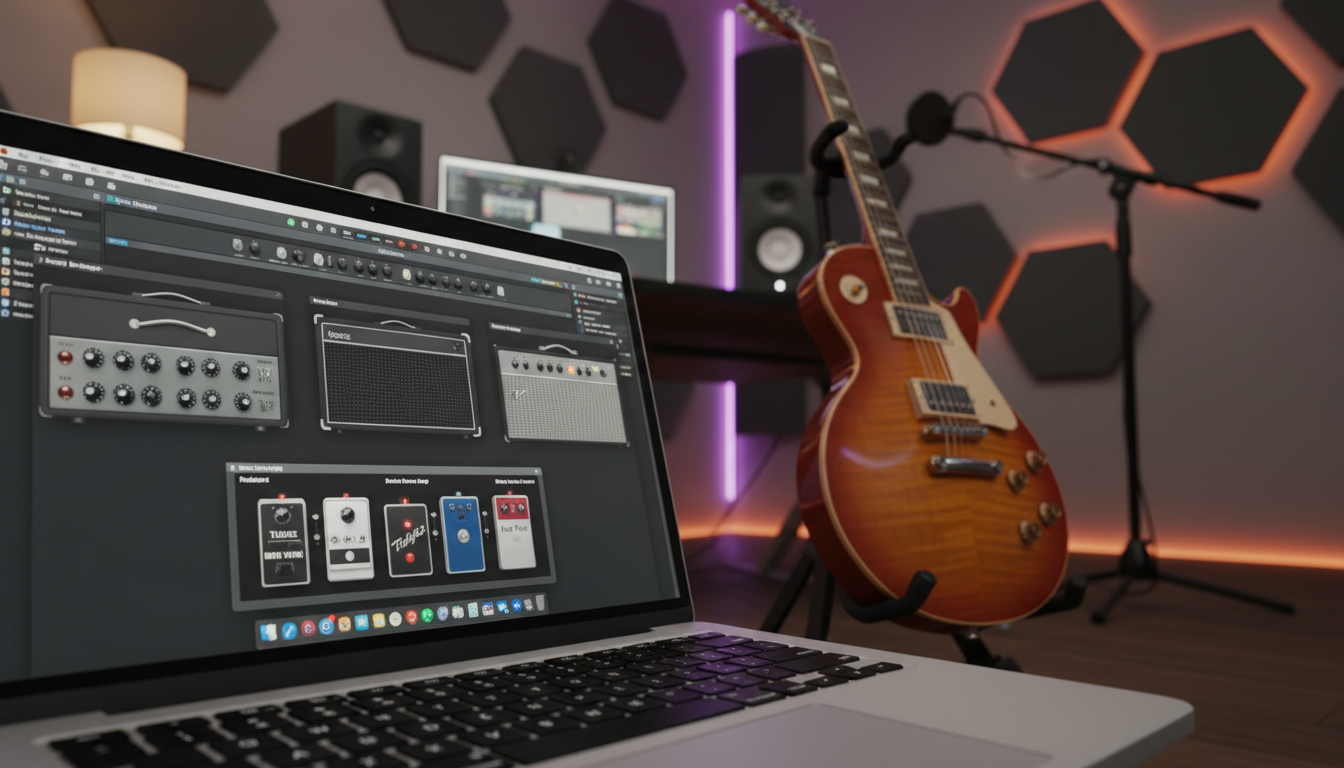
Creating a professional guitar sound starts with the Amp Designer plugin. This tool is at the heart of your signal chain. It offers a huge collection of logic pro guitar plugins that mimic famous hardware. By tweaking these virtual parts, you can craft a unique sound that shines in any mix.

Selecting the Right Amplifier Model
Choosing the right amplifier is the first step in shaping your tone. You might want a clean, sparkling sound or a high-gain roar. The interface has many options to choose from. Try out different models to see how they fit your playing style.
- British stacks: Great for classic rock and aggressive lead tones.
- American combos: Ideal for blues, jazz, and clean pop textures.
- Modern high-gain: Best for heavy metal and modern production styles.
Adjusting Cabinet and Microphone Placement
After picking your amp, focus on cabinet and microphone settings for depth. Moving the virtual microphone changes the sound a lot. A mic directly in the center of the speaker cone gives a bright sound. Moving it to the edge adds warmth and softens harshness.
These logic pro free guitar plugins let you swap cabinets for the right resonance. Feel free to mix different heads with cabinets to find unique sounds. This control is why pros use these logic pro amp simulators every day.
Fine-Tuning EQ and Presence Settings
After setting your mic position, refine your tone with the EQ controls. Logic Pro makes it easy to switch EQ types with a hidden button. This lets you pick the right circuit emulation for your guitar.
Adjusting the Presence control is key for your guitar to cut through a busy mix. Increasing Presence adds clarity and high-end detail. Lowering it gives a smoother, vintage sound. Balancing these settings ensures your tone is consistent and professional, without needing expensive software.
Enhancing Dynamics with Logic Pro Pedalboard
Getting a studio-quality tone starts with managing your signal dynamics. The Logic Pro pedalboard setup has many virtual stompboxes. These can greatly improve your guitar sound. By shaping your sound before it hits the amp, you control its character and consistency.
Adding Compression for Consistent Performance
A raw DI signal can be “spiky” and uneven. This makes it hard to mix well. Use Logic X Opto or Vintage FET compressors to fix this. These logic pro guitar plugins help even out your sound.
For a natural tone, set your compressor to a 4:1 ratio. Choose an attack time between 10ms and 20ms. This keeps the initial pick transient and smooths out the sustain. It makes your sound professional and responsive to your playing.
“Great tone is not just about the amplifier; it is about how you prepare the signal before it ever hits the speaker.”
Using Overdrive and Distortion Pedals
To add character, use overdrive or distortion pedals before your amp model. These add harmonic richness and grit. You can adjust gain to find the right balance between clarity and aggression.
Need a subtle boost for blues or heavy crunch for rock? These virtual pedals offer endless possibilities. Many find logic pro free guitar plugins like these stompboxes rival expensive ones. They react to your volume knob for an authentic analog feel.
Managing Noise Gates for Clean Signal
High-gain settings can introduce unwanted hum or hiss. A well-set noise gate is key for a clean signal. Place a gate early to silence background noise without losing sustain.
- Set the threshold just above the noise floor to ensure natural decay.
- Use a fast release time to prevent the gate from cutting off your notes too abruptly.
- Keep your signal clean to allow subsequent effects to process only the guitar tone.
How to Build a Guitar Plugin Chain in Logic Pro (Pro Tone Without Paid Plugins)
Creating a great guitar tone starts with organizing your virtual signal path. Learning how to build a guitar plugin chain in logic pro gives you control over your sound. A well-organized approach ensures each effect enhances the overall sound, not just adds to the mix.

Structuring the Serial Signal Flow
Your tone’s foundation is a clean serial path. Begin by adding a Direction Mixer plug-in at the top of your channel strip. This step turns your mono guitar input into a stereo signal, allowing for wider and more complex processing.
After your signal is stereo, arrange your core tone-shaping tools logically. Place compression and EQ before your amp simulation. This serial flow ensures your amplifier gets a consistent, clean signal, just like real hardware.
Integrating Parallel Processing Techniques
Parallel processing adds depth to your logic pro guitar effects chain. Instead of a single line, use a Bus to blend a dry or lightly processed signal with a heavily affected one. This keeps your guitar’s original punch while adding rich textures.
Try sending your signal to an auxiliary track with heavy distortion or modulation. Blending this back into your main channel maintains clarity and definition. This prevents your tone from becoming thin or washed out in dense arrangements.
Organizing Your Channel Strip for Efficiency
Keeping your project organized is key for a smooth creative process. Use Logic Pro’s naming features to label every plugin and bus clearly. Knowing what each component does lets you make faster adjustments during mixing.
Group related effects together to keep your interface clean. A tidy channel strip reduces CPU strain and keeps your focus on the music. Efficiency lets you experiment more freely without getting lost in confusing settings.
Sculpting Tone with Stock Equalization Tools
Getting a logic pro tone without paid plugins is doable with stock equalization tools. EQ shapes your guitar tracks, letting you create space and define your sound. Small tweaks can make a big difference, keeping your sound clean and clear.
Applying Channel EQ for Surgical Cuts
The Channel EQ is great for refining your signal. For a sharp, modern sound, use Dual Mono mode. A slight mid-range boost, between 1 kHz and 2.5 kHz, helps your guitar stand out in a busy mix.
High-pass filters remove unwanted low-end frequencies. This keeps your sound clean and prevents it from getting muddled. Surgical cuts are key for removing frequencies that clash with your bass or kick drum.
Using Vintage Tube EQ for Harmonic Color
After cleaning up your signal, add warmth with the Vintage Tube EQ. It mimics the sound of classic hardware, adding harmonic richness to thin tracks.
Boost the high-end shelf gently to add brightness to your leads. This tool’s saturation makes your guitar sound natural in the mix. It’s a great way to get a high-end logic pro tone without paid plugins, like analog gear.
Removing Mud and Harsh Frequencies
Mud often hides in the 200 Hz to 400 Hz range, making your guitar sound boxy. Use a narrow Q setting on your EQ to find and reduce these frequencies. This makes your sound more transparent and professional.
If your guitar sounds too sharp or brittle, look for harsh frequencies around 3 kHz to 5 kHz. A small reduction here will soften the top end. Regular use of these methods keeps your mix balanced and full.
Adding Depth and Space with Time-Based Effects
Once you’ve got your core tone right, it’s time to add more depth to your sound. Time-based effects are key to polishing your logic pro guitar effects chain. They help transform your guitar from a simple sound to a rich, immersive experience.
Configuring Delay for Rhythmic Interest
Delay adds movement to your playing. Use the Tape Delay plugin for a classic, warm sound. It’s perfect for adding depth to your lead or rhythm parts.
Try adjusting the Deviation control to create a subtle stereo width. This makes your guitar sound wider and more professional. It prevents the delay from feeling static or robotic.
Creating Lush Ambience with Space Designer
Space Designer is great for placing your guitar in a realistic environment. It offers various impulse responses, from small rooms to huge concert halls. This adds a natural, lush tail to your notes.
When setting up your logic pro guitar effects chain, balance the wet/dry mix. You want enough ambience for depth without losing clarity. A touch of plate or hall reverb is often perfect for rock and pop.
Using Modulation Effects for Texture
Modulation effects like chorus, flanger, or phaser add unique character to your sound. They subtly alter the pitch or timing of your signal. These effects are great for creating dreamy textures.
Play with the rate and depth settings to find the right shimmer. Using these effects sparingly can transform a simple chord progression into a complex soundscape. Make sure they fit the vibe of your track.
| Effect Type | Primary Use | Key Setting |
|---|---|---|
| Tape Delay | Rhythmic Echo | Deviation |
| Space Designer | Natural Ambience | Impulse Response |
| Chorus | Texture/Width | Rate/Depth |
Advanced Mixing Tips for Professional Guitar Tracks
You can make your home recordings sound like they were made in a studio with these logic pro guitar mixing tips. Basic EQ and compression are good, but for a pro sound, you need more. Focus on how the sound is placed in space and its harmony to make your guitar tracks shine.
Double Tracking and Panning Strategies
To make your guitar sound huge, create a wide soundstage. Use the Dual Mono Pitch Shifter plugin to double-track your sound. Set one side to +4 cents and the other to -4 cents for a natural stereo spread.
After shifting, pan your tracks hard left and right. This method gives you incredible width without phase problems. It makes your rhythm guitars sound massive.
Using Multiband Compression for Taming Peaks
Peaks in your guitar sound can be distracting or clash with other instruments. Multiband compression helps by focusing on specific frequencies. This keeps your tone even throughout the song.
This method is clearer than using a regular compressor. It makes your logic pro guitar mixing tips sound balanced and controlled, fitting well in the mix.
Applying Saturation for Analog Warmth
Digital recordings can sound too clean. Adding saturation brings that analog warmth to your guitar tracks. It adds subtle distortion, making your sound richer and more organic.
Try different saturation plugins to find the right amount of grit for your music. A bit of harmonic enhancement can make your guitar tracks stand out in a busy mix with professional clarity.
Troubleshooting Common Tone Issues
Even the best guitar tones can face technical problems during recording. Whether you’re tweaking your logic pro amp simulators or adjusting your logic pro pedalboard setup, staying organized is key. If your sound seems thin or uneven, a few tweaks can fix it.
Fixing Phase Cancellation Problems
Phase cancellation happens when using multiple microphones or combining stereo signals. If your guitar sounds hollow or lacks bass, the waveforms might be conflicting. Always check the polarity of your tracks if you’re recording with more than one source.
To fix this, use the Gain plugin in Logic Pro. Insert it on your channel strip and turn on the phase invert button. This simple step can bring back the full-bodied character of your guitar tone quickly.
Reducing Digital Clipping and Distortion
Digital clipping occurs when your signal goes beyond your interface or software’s limit. If you hear harsh crackling, check your input levels right away. Proper gain staging is crucial to keep your signal clean before it hits your virtual effects.
Keep your input levels around -12dB to -6dB to give your plugins enough room to work. If you see distortion, lower the gain of your initial stage. This keeps your logic pro pedalboard setup clear and musical throughout.
Managing CPU Load with Track Freezing
Complex signal chains can overload your computer, causing playback errors or audio dropouts. When your project gets heavy, use the Track Freeze feature. It renders your guitar tracks into temporary audio files, freeing up processing power.
Also, turn on the Low Latency Mode button in your toolbar while recording. This disables high-latency plugins and bus sends not needed for tracking. By managing your resources well, you can keep your logic pro amp simulators running smoothly without interruptions.
Conclusion
Getting professional guitar tones is easy with Apple Logic Pro’s tools. You can make studio-quality tracks without extra software costs.
Use these tips to make your guitar sound great. Balance your gain and creativity to keep your sound clean and strong.
Save your best settings as presets to work faster. This way, you can focus on your music more.
Keep trying new things to find your sound. Mix different pedals and cabinets to match your playing style. Start improving your recordings with these tips.
Share your custom chains with other musicians. This helps build a community of creative artists. Keep exploring what you can do with your digital tools.
FAQ
How to build a guitar plugin chain in Logic Pro (pro tone without paid plugins)?
Start with a Noise Gate to clean up the DI signal. Then, use the Pedalboard for compression and overdrive. Next, choose the Amp Designer to define your sound.Finish with Channel EQ for sculpting and Space Designer for depth. Mastering these tools lets you achieve a high-end sound without third-party software costs.
What are the best Logic Pro guitar plugins for a professional mix?
Logic Pro has top-notch built-in tools. The Amp Designer offers legendary amplifier recreations. The Pedalboard provides classic stompbox emulations for dynamics.For polish, use the Vintage Tube EQ and Space Designer convolution reverb. These add a studio-quality environment to your tracks.
How can I achieve a pro Logic Pro tone without paid plugins?
Focus on gain staging and microphone placement. Set your audio interface to peak at -10dBFS. Inside Amp Designer, adjust the virtual microphone for the best sound.These small tweaks can make a big difference, beating expensive external plugins.
What is the ideal Logic Pro guitar effects chain order?
The best order is: Noise Gate > Compressor > Overdrive/Distortion > Amp Simulator > EQ > Delay > Reverb. Dynamics and grit before the amp mimic a real setup.Time-based effects like Delay Designer after the amp keep repeats clear and prevent tone muddiness.
Are Logic Pro free guitar plugins actually high quality?
Yes, they are. The “stock” plugins in Apple Logic Pro are modeled after iconic hardware. For example, the Vintage Collection EQs are based on Pultec and Neve units.When used correctly, these free tools provide everything needed for a radio-ready guitar production.
How do I optimize my Logic Pro amp simulators for a realistic feel?
Use the hidden EQ types within the Amp Designer interface to fine-tune frequencies. Also, use the Direction Mixer to widen your stereo image.This makes the virtual amp feel like it’s moving air in a real room.
What is the best Logic Pro pedalboard setup for consistent dynamics?
Start your Pedalboard with a sustainer or compressor pedal to level out volume peaks. This makes your performance feel more “glued” and professional.Follow this with a subtle Overdrive to add character and sustain before the signal hits your virtual amplifier.
Do you have any Logic Pro guitar mixing tips for managing CPU load?
High-quality amp sims and reverbs like Space Designer can be taxing. To keep your project running smoothly, use the Track Freeze function once you’re happy with your tone.This renders the track temporarily, freeing up CPU resources for other parts of your mix while keeping your plugin chain intact for later adjustments.