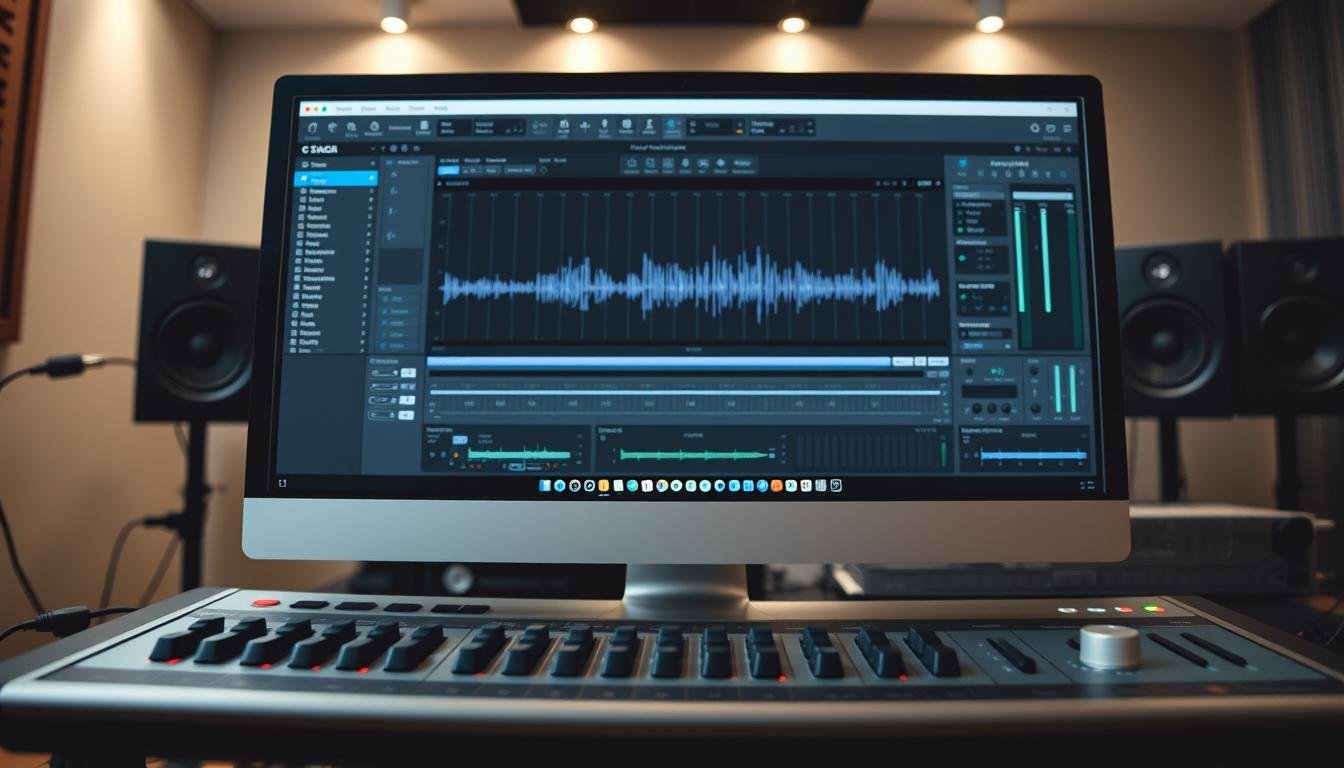

When recording electric tracks, a key question is: “Where is my tone coming from?” This question is at the heart of how your music sounds. To start, you need home recording studio essentials to keep your audio clear. A professional interface is key to a clean environment.
🎸 Free Guitar Tone Guide
Fix your guitar recordings in Logic in minutes.
This beginner guide will help you understand the technical side of Home Music Production for Guitarists. We’ll look at guitar recording equipment and show how to get great tracks easily. With a smart plan, you can focus more on playing.
Key Takeaways
- Discover the impact of signal chain quality on your sound.
- Identify the necessary hardware to achieve clean connections.
- Configure your software to allow latency-free monitoring.
- Explore techniques to capture natural instrument dynamics.
- Understand room acoustics to ensure clear playback.
- Maintain high standards to improve mixing results.
Essential Equipment for Recording Guitar at Home
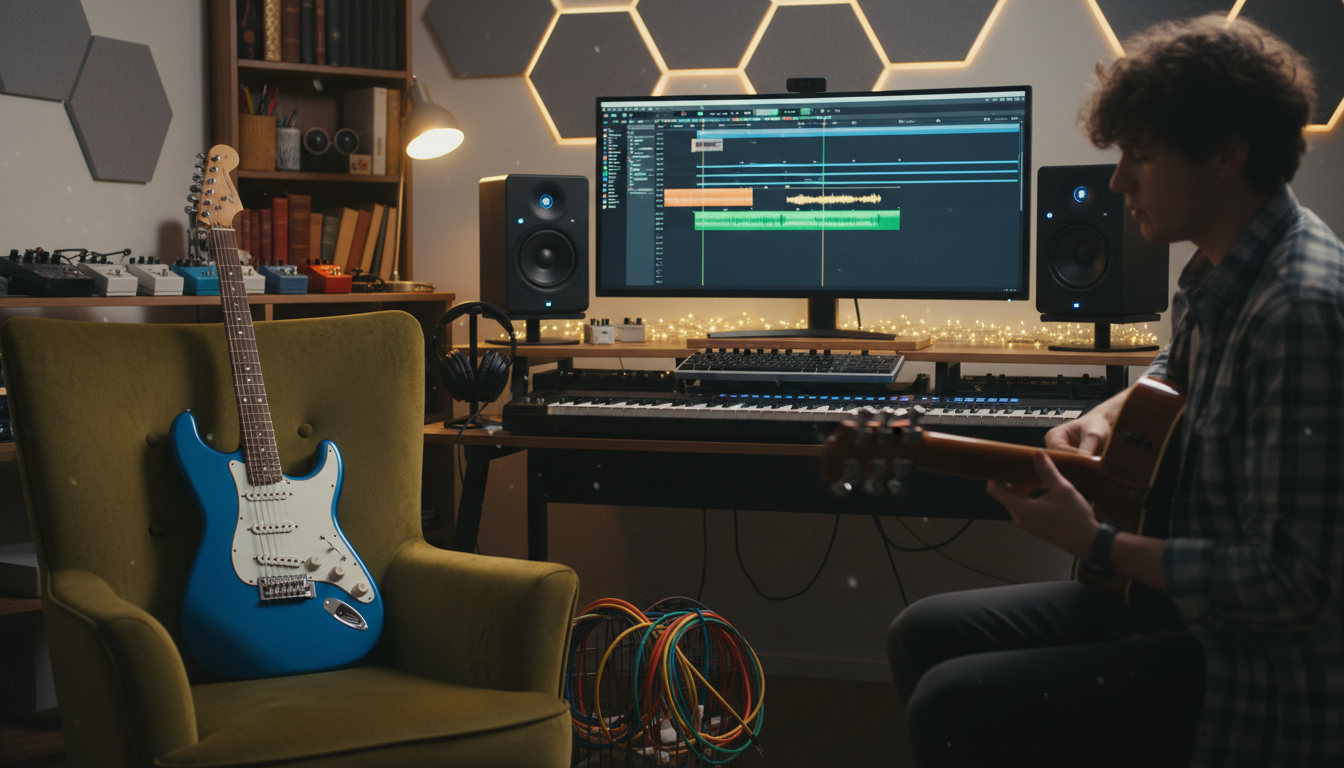
Setting up a home studio setup for guitar recording needs careful gear selection. You’ll need a few key items to get high-quality sound.
Choosing the Right Audio Interface
An audio interface is crucial for your home studio. It connects your guitar to your computer, capturing top-notch audio. Think about the number of inputs, connectivity options, and preamp quality when picking one.
Popular choices include the Focusrite Scarlett and PreSonus AudioBox series. Look for an interface with a high signal-to-noise ratio and durable build.
Microphones: Dynamic vs Condenser
Deciding between dynamic and condenser microphones is key for guitar recording. Dynamic mics are tough and great for loud amps. Condenser mics are more sensitive, capturing a broader range of sounds.
- Dynamic microphones: Shure SM57, Sennheiser MD421
- Condenser microphones: Rode NT1-A, AKG C414
Cables, Stands, and Must-Have Accessories
Along with an audio interface and mic, you’ll need other essentials. These include:
- XLR cables for mic to interface connections
- Instrument cables for guitar to interface or amp
- Microphone stands for proper mic placement
- Pop filters to reduce plosive sounds
With these key items, you’re ready to start a top-notch home studio for guitar recording. Once you have your gear ready, the next step is learning how to record electric guitar at home properly.
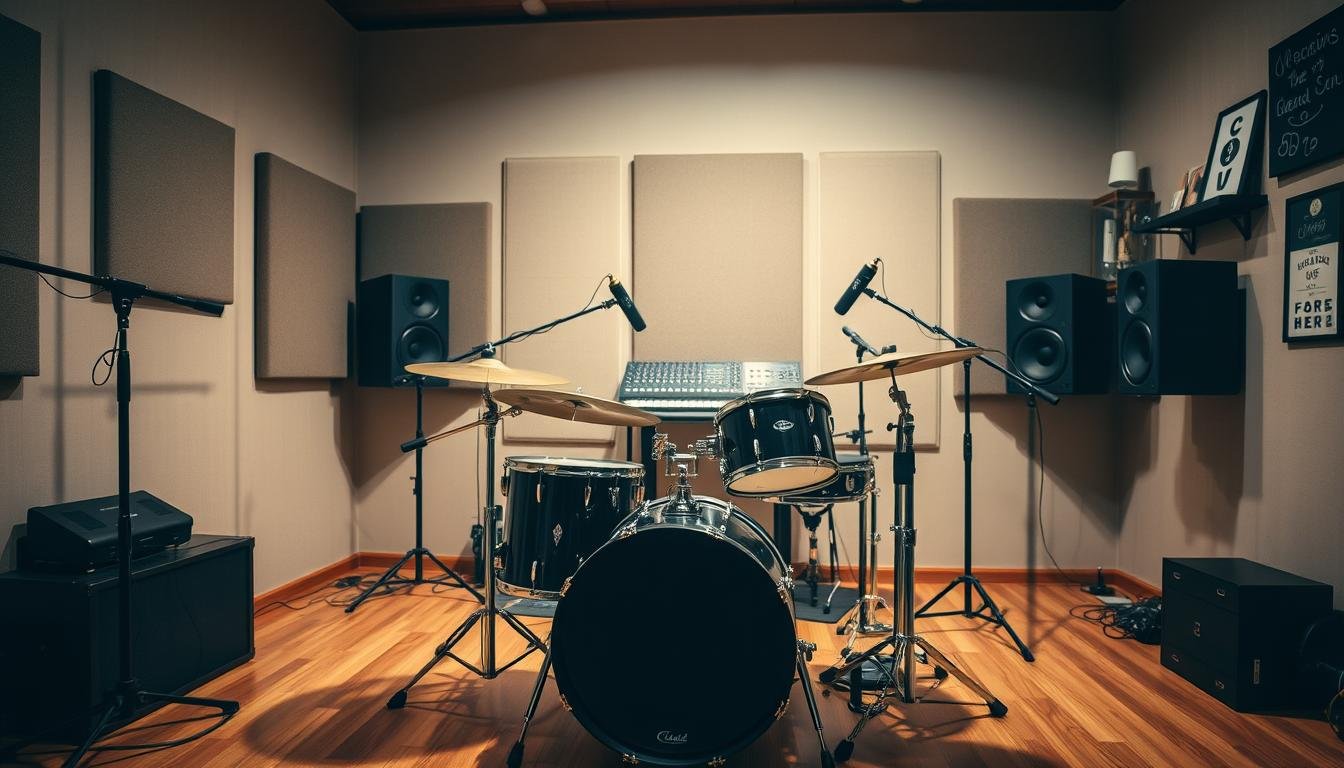
Setting Up Your Physical Recording Space
Turning a room in your home into a professional recording space is key for top-notch guitar tracks. The environment greatly impacts sound quality, so optimizing your space is crucial.
A well-designed recording space boosts production quality. It improves the sound during recording and cuts down on editing needs.
Finding the Best Room in Your Home
Choosing the right room for your studio is important. A small room might sound boomy, while a large one can sound distant. You want a room with minimal echo and reverberation.
Avoid rooms with hard surfaces and parallel walls. These can cause sound reflections that harm your recording quality.
Budget-Friendly Acoustic Treatment Solutions
Acoustic treatment is essential for a good recording space. You don’t have to spend a lot to get it right. There are many affordable options.
DIY absorption panels made from Owens Corning 703 or Roxul Safe’n’Sound insulation work well. Wrap them in fabric and place them around the room to reduce reflections and improve sound.

Optimal Equipment Placement for Guitar Recording
Where you place your guitar amp and mic greatly affects the sound. Try placing your amp on a chair or stand to change the sound. This is because sonic reflections mix differently with the direct sound.
Play with mic placements and angles to find the right tone. Also, think about the room’s acoustics when setting up your gear to avoid unwanted reflections.
By picking the right room, using affordable acoustic treatments, and placing your gear wisely, you can greatly improve your guitar recordings at home.
Installing Logic Pro and Connecting Your Interface
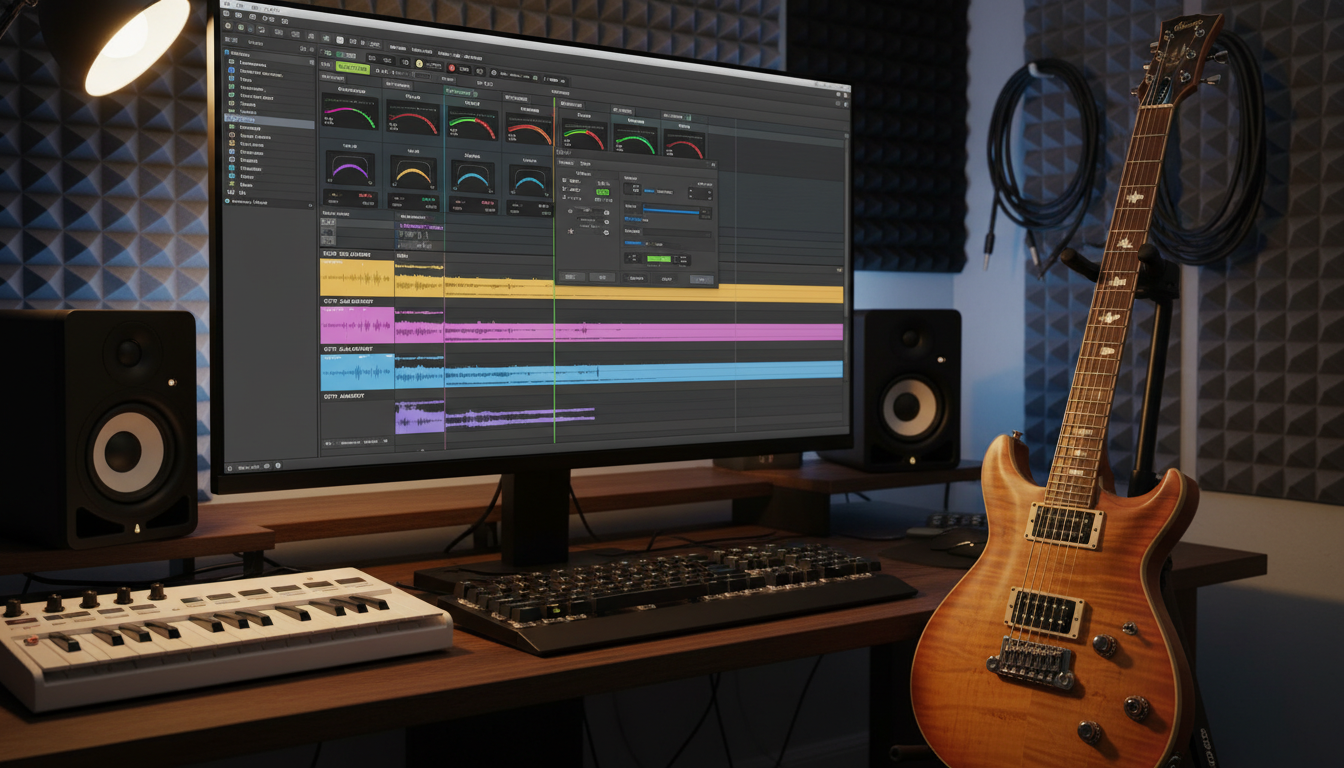
Now, let’s get Logic Pro installed and your audio interface connected. This is key for a top-notch home studio to record great guitar tracks.
Logic Pro System Requirements and Installation
First, check if your computer meets the system requirements. Logic Pro only works on macOS. Make sure your Mac is running the latest compatible operating system. Visit Apple’s website for the latest system requirements. Then, download and install Logic Pro from the Mac App Store.
The installation is easy. Just follow the instructions on your screen. After installing, update Logic Pro to the latest version. This gives you the newest features and improvements.
Connecting and Configuring Your Audio Interface
Next, connect your audio interface. It’s a key part of your studio, linking your guitar, microphone, and computer. Plug it into your computer via USB or Thunderbolt, depending on your interface.
To set up your audio interface in Logic Pro, go to Logic Pro > Settings > Audio. Choose your audio interface as both Input and Output Device. This tells Logic Pro to use it for recording and playback.
Setting Buffer Size and Sample Rate for Recording
Buffer size and sample rate are important for recording quality. Buffer size is how much audio data is stored before processing. A smaller buffer size means less delay but might cause audio dropouts if your computer can’t handle it.
To adjust the buffer size, go to Logic Pro > Settings > Audio. For most recording, a buffer size between 32 and 256 samples works well for low latency.
The sample rate is how many audio samples are taken per second. A higher sample rate captures more detail but makes files bigger. For guitar, a sample rate of 44.1 kHz or 48 kHz is usually enough.
Testing Your Signal Path
After setting up your audio interface and settings, test your signal path. This checks if your guitar signal is being correctly received by Logic Pro without any issues.
To test, arm a track for recording in Logic Pro and play your guitar. Check the input levels to make sure they’re right. Adjust the gain on your audio interface or guitar as needed for the best signal.
By following these steps, you’ll have Logic Pro set up, your audio interface connected, and your signal path tested. You’re ready to record high-quality guitar tracks.
Home Studio Setup for Guitarists: Record Pro Guitar in Logic (Beginner Guide)
Recording great guitar tracks in Logic Pro is easy for beginners with the right setup. This guide will help you make your first guitar recording. You’ll learn about input monitoring, latency, and how to organize your tracks.
Creating Your First Guitar Recording Project
To begin, open Logic Pro and make a new project. Choose “File” > “New” (or press Command + N). Pick a template or start with nothing. Name your project and pick a save location.
Configuring Your Project Settings: Make sure your project settings fit your recording needs. Set the tempo, time signature, and key of your song. Go to “Project” > “Project Settings” > “General” to do this.
Understanding Input Monitoring and Latency
Input monitoring lets you hear your guitar as you record. Logic Pro has a low-latency system. To change input monitoring, go to “Logic Pro” > “Preferences” > “Audio”. Adjust the “Buffer Size” for better performance and less latency.
Latency is the delay between playing and hearing your guitar. Lower buffer sizes reduce latency but use more CPU. Finding the right balance is key for a good recording experience.
Setting Up Click Tracks and Metronomes
A click track keeps your tempo steady. To turn it on, go to “View” > “Click” (or press Command + K). Adjust click settings in “Project” > “Project Settings” > “Metronome”. This helps keep your recordings in time.
Organizing Tracks and Regions
Keeping your recordings organized is important. Use descriptive track names and colors to tell tracks apart. Group similar tracks together, like all guitar tracks, using folders.
In the “Arrange” view, manage your recordings visually. Use markers for different song parts, like verse or chorus. This makes navigating easier.

| Task | Description | Logic Pro Path |
|---|---|---|
| Create New Project | Start a new recording project | File > New |
| Adjust Input Monitoring | Minimize latency | Logic Pro > Preferences > Audio |
| Enable Click Track | Maintain consistent tempo | View > Click |
| Organize Tracks | Use descriptive names and colors | Arrange View |
Recording Direct Input Guitar in Logic Pro
Logic Pro is a top choice for home studio musicians to record direct input guitar. This guide will show you how to connect your guitar, use Amp Designer and Pedalboard plugins, and record your first clean DI take.
This is where most guitarists mess up their tone.
I break it down in a simple checklist for Logic users.
Connecting Your Guitar for DI Recording
To record your guitar directly into Logic Pro, connect it to your audio interface. Most modern guitars use a ¼-inch cable to an interface with a suitable input. Make sure your interface is ready to receive your guitar’s signal.
Tip: Use a high-quality cable to avoid signal loss and noise.
Using Logic Pro’s Amp Designer Plugin
Amp Designer in Logic Pro simulates many guitar amplifiers and cabinets. To use it, go to “Plug-ins” > “Amplifier” > “Amp Designer.”
Press Y to open the Library panel. Go to Electric Guitar and Bass. Look through presets for clean, distorted, or crunchy tones to match your recording needs.
Exploring the Pedalboard Plugin
The Pedalboard plugin in Logic Pro lets you customize your guitar sound with various effects pedals. You can arrange these pedals to get the tone you want.
Try different pedal orders and settings to discover your unique sound.
Recording Your First Clean DI Take
Before you start recording, make sure your signal path is clear and your levels are right. Arm the track in Logic Pro and adjust your input levels.
| Step | Description |
|---|---|
| 1 | Connect your guitar to your audio interface. |
| 2 | Open Logic Pro and create a new project. |
| 3 | Arm the track for recording and adjust input levels. |
| 4 | Use Amp Designer and Pedalboard to achieve your desired tone. |
| 5 | Record your clean DI take. |
Microphone Recording Techniques for Guitar Amps
Recording your guitar amp sound with the right microphone techniques is key. The right method can make your recording sound professional and polished.
Classic Mic Placement Methods
There are several classic mic placement methods to try. The most common is placing the microphone in front of the amp speaker. Experimenting with different mic positions can change the tone of your recording.
As you move the mic closer to the speakers, the sound becomes more focused. Moving it away makes the sound mellow. This lets you capture a range of tones, from tight and aggressive to warm and mellow.
Setting Proper Recording Levels
To get clean recordings, you also need proper gain staging in Logic Pro.
Getting the right recording levels is crucial for a high-quality guitar amp recording. If levels are too low, the signal may be weak and noisy. If they’re too high, the signal may distort.
Optimal recording levels are between -18 dB and -12 dB. This range balances signal strength and headroom, ensuring a clear and distortion-free recording.
Combining Microphone and DI Signals
Using both microphone and DI signals can enhance your guitar amp recording. The DI signal gives a clean, direct sound. The mic captures the amp and speaker’s character.
| Signal Type | Characteristics | Use Case |
|---|---|---|
| DI Signal | Clean, direct sound | Adding clarity and definition |
| MIC Signal | Amp and speaker character | Adding warmth and texture |
| Combined Signal | Balanced sound with depth | Professional-sounding recordings |
Processing and Mixing Guitar Tracks in Logic
Processing and mixing guitar tracks in Logic Pro turns your recordings into a polished product. This stage is key to enhancing your recordings’ quality. It makes them sound more refined and engaging.
Essential EQ Techniques for Guitar
Equalization (EQ) in Logic Pro lets you adjust your guitar’s tone. By boosting or cutting certain frequencies, you can greatly improve the sound.
- Boosting the low end (around 100 Hz) adds weight and depth to your guitar sound.
- Cutting the low-midrange (around 200-300 Hz) can help reduce muddiness.
- Boosting the high end (above 5 kHz) enhances clarity and definition.
For example, if you’re recording a heavy metal rhythm guitar, you might want to boost around 100 Hz to add heaviness and cut around 500 Hz to reduce muddiness.
Compression Settings That Work
Compression makes your guitar signal more consistent and controlled. You need to adjust threshold, ratio, attack, and release.
Using a fast release time with high compression can make the sound level pump. But, this can be used creatively to make the sound more powerful and loud.
- Threshold: Set this to determine when the compressor starts to reduce the signal.
- Ratio: Controls the amount of compression applied.
- Attack: Adjusts how quickly the compressor responds.
- Release: Determines how long it takes for the compressor to return to normal.
Adding Reverb and Delay Effects
Reverb and delay effects add depth and interest to your guitar tracks. Logic Pro has many plugins to achieve these effects.
Reverb simulates the ambiance of different spaces, from small rooms to large halls. It’s essential for creating a sense of space around your guitar sound.
Delay effects repeat your guitar signal, creating an echo that can add complexity and rhythm to your tracks.
Layering Multiple Guitar Parts
Layering multiple guitar parts can enrich your sound, adding complexity and texture. This involves recording multiple guitar tracks and blending them together.
- Record a core guitar part that provides the foundation.
- Add additional layers with different tones or playing styles.
- Experiment with panning to create a wide, immersive soundstage.
By carefully processing and mixing your guitar tracks in Logic Pro, you can achieve a professional-sounding result. This elevates your music.
Troubleshooting Common Guitar Recording Problems
Recording guitar at home can be tricky. You might face noise, latency, or other issues. We’ll look at common problems and how to solve them.
Eliminating Unwanted Noise and Hum
Noise and hum can ruin your recordings. Electrical interference from devices is a big culprit. Keep your guitar and gear away from computers and lights.
Use cables that cut down on noise and make sure everything is grounded. If hum persists, try a hum eliminator or a noise gate plugin in Logic Pro.
For tough hum, use EQs to create narrow filters. This method can get rid of hum without harming your guitar’s sound.
Fixing Latency Issues
Latency can make your recordings feel delayed. Check your buffer size in Logic Pro. A smaller buffer size can help, but don’t make it too small.
Use direct monitoring on your audio interface if you can. This lets you hear your guitar directly, cutting down on latency.
Dealing with Clipping and Distortion
Clipping and distortion happen when your signal is too strong. Adjust your gain levels to avoid this. Make sure your signal is strong but not too high.
Be careful with plugins like Amp Designer in Logic Pro. High gain can cause clipping. Use the plugin’s controls to keep your levels right.
Resolving Driver and Compatibility Issues
Driver and compatibility problems can mess up your recordings. Keep your audio interface drivers updated and compatible with Logic Pro.
If a plugin or software isn’t working, try reinstalling it or checking for updates. Resetting Logic Pro’s preferences to default can also help.
You don’t need expensive gear to sound pro.
You just need the right process.
Conclusion
Recording electric guitar in Logic Pro is very flexible. You can work entirely in the box, mix pedals with amp sims, or use a full external setup. With the right home studio, you can get professional sound.
This article is a beginner’s guide. It covers the key equipment, setting up your space, and using Logic Pro to record. By following these steps, you can explore new creative possibilities and find the perfect guitar tone.
Try different recording methods, like direct input or microphone placement. Logic Pro’s Amp Designer and Pedalboard plugins offer many ways to shape your sound.
Now, it’s time to apply what you’ve learned. Start recording your guitar parts in Logic Pro. With practice, you’ll soon make professional-sounding recordings.
FAQ
What is the best home studio setup for guitarists starting out?
A solid beginner setup includes a Mac, Logic Pro X, a Focusrite Scarlett interface, a Shure SM57 microphone, and a pair of Sennheiser headphones. This covers both DI and amp recording needs.
How do I record pro guitar in Logic without an amp?
You can plug your guitar directly into your interface’s Hi-Z input and use the Logic Pro recording tutorial steps to load the Amp Designer and Pedalboard plugins for a professional “in-the-box” sound.
What are the home recording studio essentials for a quiet room?
Beyond the electronics, you need acoustic treatment like Auralex foam or GIK Acoustics panels to manage reflections. Heavy rugs and curtains also help create a better recording environment.
Why is my guitar lagging in Logic Pro?
This is called latency. To fix it, go to your audio settings and lower the Buffer Size to 64 or 128 samples, or enable Low Latency Monitoring Mode during your recording session.
Can I use a regular guitar cable for recording?
Yes, but higher-quality shielded cables like those from Mogami or Planet Waves will reduce the amount of unwanted hum and interference in your tracks.
Is Logic Pro better than other DAWs for guitarists?
Many guitarists prefer Logic Pro because it includes a massive library of high-quality Amp Designer models and pedals for free, making it a complete home studio setup for guitarists: record pro guitar in logic (beginner guide) solution.