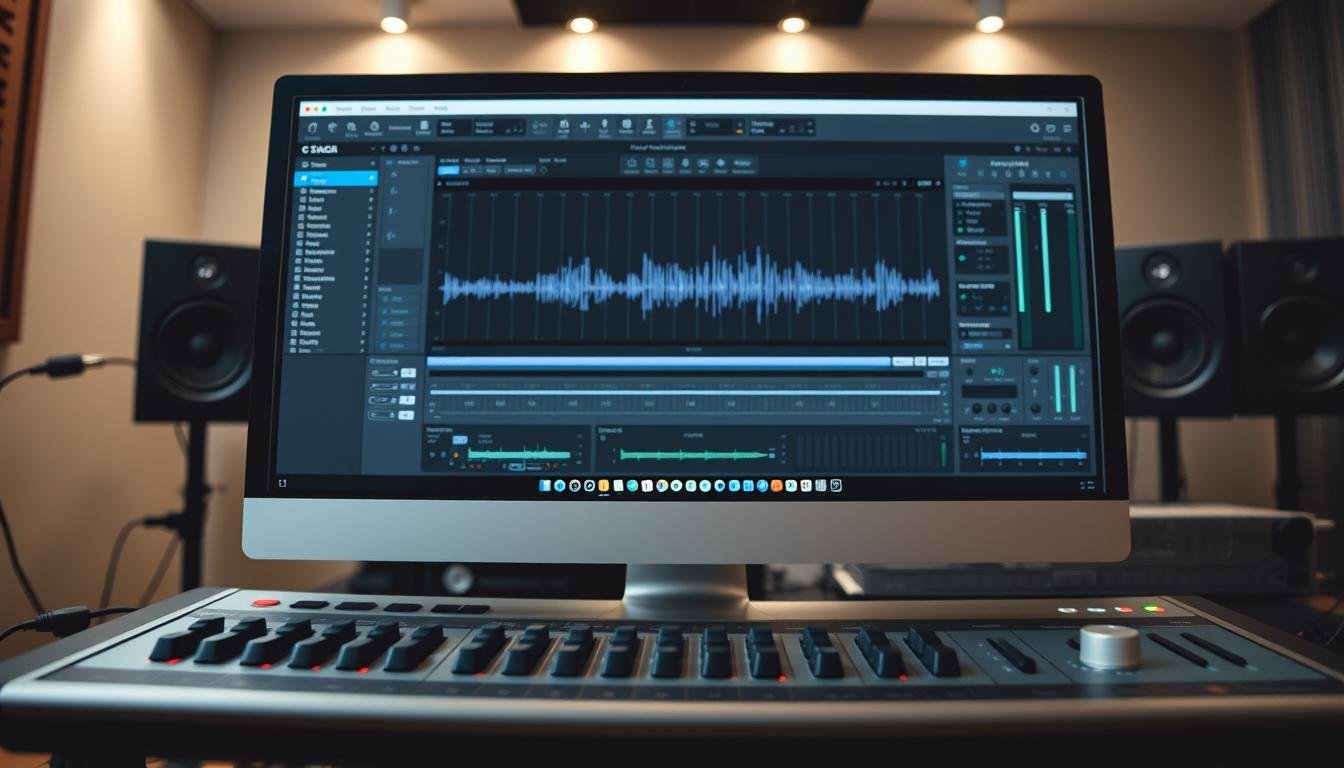

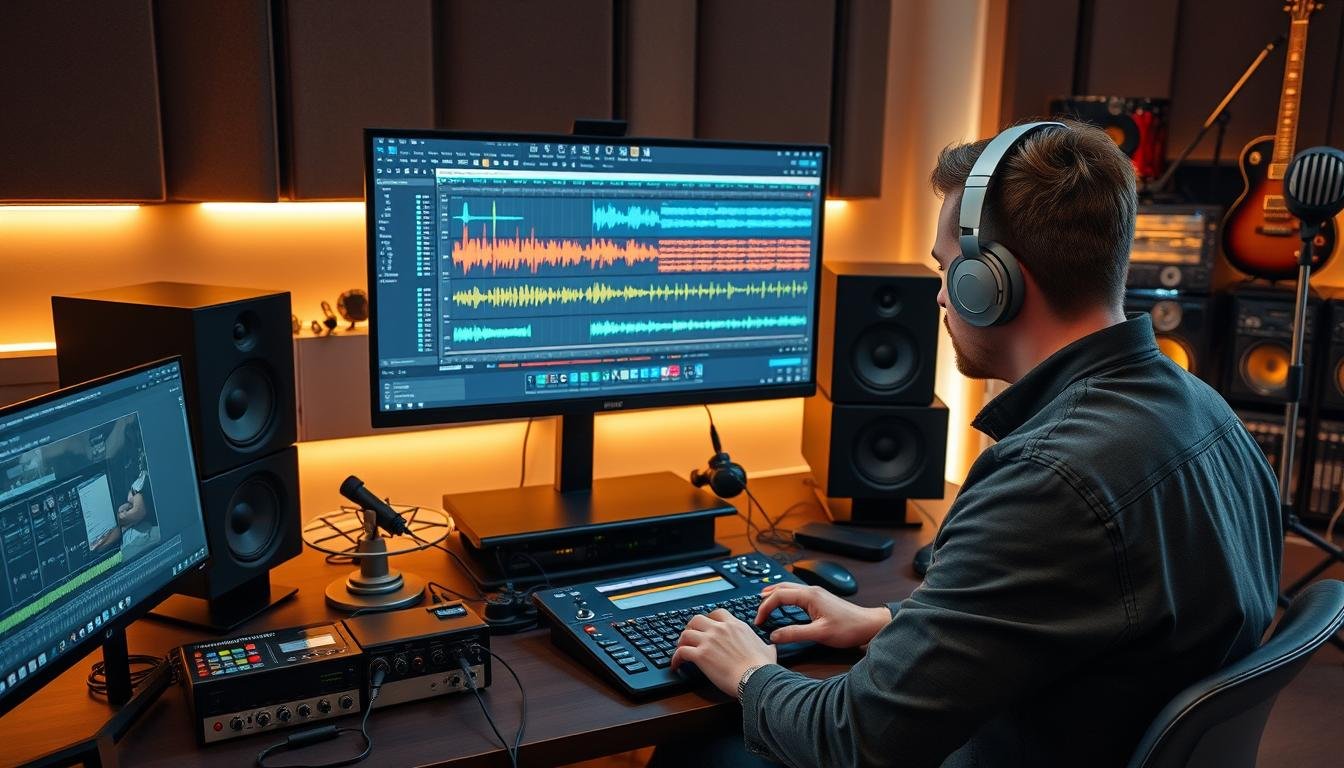
Looking for music production software? You’ve seen many “industry standard” options. A digital audio workstation is like a complete studio in your computer. It’s where you record, shape, and finish songs without needing lots of equipment.
So, what is a daw in simple terms? It’s one app that does everything: records, edits, arranges, and mixes. For beginners, this might seem overwhelming. But you don’t have to learn it all at once.
This guide covers the basics found in most DAWs. Learning about recording, editing, arranging, and mixing makes it easier to switch tools later. Most DAWs share the same core ideas, even if they look different.
A digital audio workstation also replaces old studio hardware like mixing consoles and samplers. The aim is to make progress, not to be perfect. Start small, try free trials, and add more features as you get better at music production software.
Key Takeaways
- A digital audio workstation combines recording, editing, arranging, and mixing in one place.
- What is a daw becomes simple when you focus on the main workflow, not every button.
- DAW basics transfer across brands, so you can switch later with less stress.
- A daw for beginners can deliver solid results fast with a few core skills.
- Modern music production software can replace much of the gear found in a traditional studio.
- Trial versions and small projects help you learn faster and spend smarter.
What Is a DAW? A Beginner’s Guide to Digital Audio Workstations
Ever wondered what a DAW is? It’s the app where songs come to life on a computer. It’s like recording software that takes sound from start to finish.
A DAW is where you record, edit, arrange, mix, and master your music. Once you get the hang of it, it’s all about making your song shine.
Core Functions and Capabilities
DAWs let you record many tracks at once. You can have vocals, guitar, drums, and synths all playing together in sync. It’s like having a whole studio in one app.
Editing in a DAW saves a lot of time. You can fix timing, trim silence, and correct small mistakes without starting over.
Arranging your music is done on a timeline grid. You can cut, copy, and paste parts, loop hooks, and move sections around. It’s like building with blocks.
Mixing tools are built right in. You can use EQ, compression, reverb, and delay on your tracks. After mixing, simple mastering steps help your music sound great everywhere.
| DAW task | What you control | Common result |
|---|---|---|
| Tracking | Inputs, levels, takes | Clean multi-track recordings |
| Editing | Timing, fades, clip gain | Tighter performances |
| Arranging | Timeline, loops, markers | Clear song structure |
| Mixing | Faders, pan, inserts, sends | Balanced, polished sound |
How DAWs Revolutionized Music Production
Before DAWs, making music was a lot more complicated. You needed tape machines, a mixing console, and lots of gear. Now, everything is in one place, making it easier and faster.
This change has made music production more flexible. You can try out new ideas quickly and make changes easily. For many, the freedom to create is what makes DAWs so powerful.
DAWs have also made it cheaper to start making music. With just a laptop and an audio interface, you can write, record, and mix music for many genres.
Even though different DAWs have their own ways of working, the basics are the same. Learning the basics makes it easier to switch to other tools later.
The Evolution of Digital Audio Workstations
The digital audio workstation didn’t just pop up overnight. It came from real needs in studios: better timing, cleaner edits, and quicker recalls. Today’s music software still looks like old mixing desks, with faders and knobs.
Learning about DAWs is easier when you understand their layout. A good tutorial explains the “why” behind the design, not just the features.
From Tape Machines to Computer Software
For years, recording was all about tape decks and consoles. Editing was slow, and every tweak took time. Studios used sequencers, samplers, and effects racks to shape tracks.
As computers got better, a digital audio workstation combined all these tasks in one. Recording, editing, and mixing happened in the computer. But the interface kept familiar cues, like channel strips, to help engineers work fast.
This change also made storage and recall easier. Projects could reopen with settings and edits ready to go. This is why music software replaced so much hardware.
Modern DAW Capabilities and Trends
Now, most platforms put audio and MIDI on the same timeline. MIDI controls virtual instruments, making it easy to write music without a mic. This is key in DAW basics.
Speed and creativity are crucial today. Ableton Live, for example, offers real-time looping and quick editing features. A good tutorial focuses on workflow, not just features.
Many users also add third-party tools like Serum or Kontakt to their DAW. These tools enhance synth design and sample libraries. Different apps have their own feel, but most can deliver professional results if the workflow is right.
| Era | Typical Setup | How Work Got Done | What Improved |
|---|---|---|---|
| Tape-focused studios | Tape machines, mixing console, patch bays, outboard effects | Edits by hand, routing with cables, mixes rebuilt each session | Hands-on control, but slow changes and limited recall |
| Early computer recording | Computer + audio interface + basic plug-ins | Waveform edits, simple automation, early MIDI sequencing | Faster edits and project saving, fewer hardware limits |
| Modern music production software | Integrated audio/MIDI grid, virtual instruments, flexible routing | Nonlinear arrangement, comping, automation, templates, collaboration tools | Speed, portability, and consistent mixes across sessions |
Essential Components of a DAW
A digital audio workstation can seem overwhelming at first. But, most projects use the same key areas. Learning how these parts work together makes daw basics easy to grasp. Think of daw software as one place where you record, shape, and finish a track without switching apps.

In many recording software setups, you’ll move between arranging, mixing, and editing. Each area has its role. Together, they turn raw ideas into a complete song.
The Arrangement Window and Timeline
The arrangement view is where your song’s timeline lives. You place audio clips and MIDI parts along it. This is where your song’s structure comes to life.
Basic actions include moving clips, trimming edges, and duplicating sections. Looping a chorus or building a breakdown is simple. It’s important to name tracks and line up parts before adding effects.
Mixer and Channel Strips
The mixer is like a classic mixing desk in daw software. Each channel strip has controls for volume, pan, and effects. It’s the best way to check balance.
For beginners, watch the meters and avoid red peaks. Clean levels make room for later processing. Lowering a loud track instead of boosting others helps keep mixes calm.
MIDI Editor and Piano Roll
MIDI stores performance data, not audio. It includes notes, length, and intensity. It triggers instruments like piano and drums inside a digital audio workstation.
In the piano roll, you can draw or record notes. Quantization tightens timing, while velocity editing adds feel. Many tools, like arpeggiators, can be automated for motion.
Audio Editor and Waveform Manipulation
The audio editor is for precise waveform work. You can fix timing, remove noise, or build new patterns. These edits may seem small but add up fast.
A good routine is slicing drums into separate tracks. This makes each sound easier to shape. Use a metronome to check timing, and try pre-roll for vocals or guitar. These tools help editing stay fast and smooth.
| Component | Main purpose | Beginner-friendly actions | Common pitfall to avoid |
|---|---|---|---|
| Arrangement window | Build the song over time | Move clips, split sections, loop choruses, label tracks | Messy track order that slows edits later |
| Mixer | Balance levels and tone | Set faders, pan parts, insert EQ/reverb, watch meters | Clipping from pushing levels into the red |
| MIDI editor | Create and refine instrument parts | Draw notes, quantize timing, edit velocity, layer sounds | Over-quantizing until the groove feels stiff |
| Audio editor | Tighten and reshape recordings | Trim silence, slice loops, align hits to the grid, use pre-roll | Too many tiny cuts that cause clicks or artifacts |
Popular DAW Software for Beginners
Choosing daw software can feel personal. Producers often swear by what they know. A daw is like a workspace for recording, editing, and mixing audio and MIDI.
For beginners, most apps have the same core tools. The main differences are workflow, genre fit, and cost. Testing options with a trial can help you decide.
A good way to start is by setting simple goals. Try building a 16-bar loop, recording one vocal take, and exporting a mix. This shows if the layout is clear or not.
Free Options to Get Started
GarageBand is free on Apple computers. It’s easy to use and comes with virtual instruments and loops. It’s a great way to start making music.
Cakewalk is free for Windows users. It’s great for learning recording, arranging, and mixing. It’s a good choice if you want to practice with guitars or vocals.
Audacity is free and focuses on editing. It’s good for trimming takes and removing noise. Many beginners use it before moving to a full DAW.
Budget-Friendly Commercial DAWs
Reaper is known for being lightweight and customizable. It’s often priced at $60, making it a good choice for beginners. It covers the basics without breaking the bank.
Reaper is great for those who like tweaking settings. It can feel like a custom fit. But, it might not be for everyone.
Studio One Artist is a middle ground. It helps you move from recording to mixing easily. It’s worth trying if you want a modern interface.
Professional-Grade DAWs
Ableton Live is popular for electronic music and live performances. It has Session View for real-time looping. Prices start at $99 for Intro, $449 for Standard, and $749 for Suite.
Logic Pro is Apple’s top DAW, priced at $199.99. It has a wide range of instruments and effects. It’s best for those already in the Apple ecosystem.
Pro Tools is a studio standard for recording and editing. It’s great for commercial studios but less known for MIDI. Prices vary, often around $199/year to $399/year.
| DAW | Best fit | Platform | Pricing snapshot | Notable trade-off |
|---|---|---|---|---|
| GarageBand | Fast songwriting, learning core tools | macOS | Free with Apple computers | Fewer advanced pro features |
| Reaper | Custom workflows, efficient recording and mixing | macOS, Windows | $60 discounted license often cited | Fewer bundled instruments and effects |
| Ableton Live | Electronic music, live sets, looping | macOS, Windows | Intro $99, Standard $449, Suite $749 | Audio editing depth varies by use case |
| Logic Pro | All-in-one production with strong built-ins | macOS | $199.99 | Mac-only setup |
| Pro Tools | Studio tracking, detailed editing, post workflows | macOS, Windows | Subscriptions often cited $199/year to $399/year | Less sample-first and MIDI-focused than some rivals |
Mobile DAW Options
Mobile music production software is great for capturing ideas on the go. It won’t replace a full desktop mix but helps with practice. It makes moving to a larger workflow easier.
Choosing the Right DAW for Your Needs
If you’re still asking, what is a daw, think of it as the hub where you record, edit, and mix audio in one place. The best fit depends on your goals, your computer, and how you like to work. For daw for beginners, it helps to focus on workflow first, then features.

Many people try a few options before settling on one daw software. That’s normal. The “right” choice is the one that keeps you creating instead of troubleshooting.
Considering Your Music Genre and Production Style
Your genre can shape how fast you learn recording software. If you build tracks with loops and MIDI, Ableton Live and FL Studio often feel quick for sequencing and beatmaking. Ableton Live can also support performance-style sessions.
If you record bands and need tight edits, Pro Tools is known for fast audio editing and studio-style sessions. If you want a broad toolkit, Logic Pro and Cubase are often treated as all-in-one systems with strong mixing tools and solid built-in instruments.
Mac vs. Windows Compatibility
Before you buy, confirm your operating system. Logic Pro and GarageBand are Apple-only, so they’re a simple match if you’re on a Mac. Ableton Live and FL Studio are cross-platform, which is helpful if you switch computers or collaborate with friends.
Also check plugin formats and driver support, since they can affect how smooth your setup feels day to day.
Hardware Requirements and Considerations
Even the best daw software can lag on a slow computer. Plan for enough CPU power and storage, specially if you use sample libraries. A basic audio interface helps you connect microphones and instruments, and it can improve sound and reduce latency.
Learn the signal path: input is what enters the computer, output is what you hear. Aim for “green” levels, avoid red clipping, and use phantom power only when a mic needs it. For vocals, a starting distance of about 6–8 inches often works well.
Budget and Long-term Investment
Price matters, but so does value over time. Use free trials to test workflow, included plugins, and how stable your recording software feels on your system. Reaper is often seen as a low-cost entry at $60, while Logic Pro is a one-time $199.99 purchase.
Some plans are ongoing, like a Pro Tools subscription at about $199–$399 per year. Ableton Live ranges roughly from $99 to $749 depending on the edition. Cubase Pro can reach around $579. FL Studio is known for lifetime free updates, but note that its Fruity Edition ($99) doesn’t allow audio recording, while Producer ($199) does.
| Need | Good Fit | Why It Helps | Cost Detail |
|---|---|---|---|
| Beatmaking, MIDI, looping | Ableton Live, FL Studio | Fast sequencing, clip/loop workflows, strong MIDI tools | Ableton Live ~$99–$749; FL Studio Fruity $99 vs Producer $199 |
| Band recording and tight audio edits | Pro Tools | Studio-style sessions and precise editing tools | Subscription ~$199–$399/year |
| All-around writing, production, mixing | Logic Pro, Cubase | One-stop setup with strong built-in instruments and mixing features | Logic Pro $199.99; Cubase Pro ~$579 |
| Low-cost, flexible start | Reaper | Lightweight install, deep feature set, scales with skill | $60 license (common entry option) |
Understanding Plugins and Virtual Instruments
Plugins are add-ons that shape your sound in daw software. They can clean vocals, thicken drum buses, or turn chords into pads. For beginners, think of plugins as a toolkit, not a shopping list.
Understanding MIDI is key. MIDI carries performance data, not audio. This lets virtual instruments play your notes with precision and consistency.
Types of Audio Plugins (Effects, Instruments, Utilities)
Effects change recorded audio. EQ can cut harsh highs or reduce mud. Compression adds punch by controlling peaks.
Reverb and delay add depth and motion. Distortion adds grit and edge. But, beware of delay feedback spiraling out of control.
Instruments generate sound from MIDI. Daw software often includes pianos, synths, and samplers. You can quickly change sounds without re-recording.
Utilities support workflow and control. Automation is crucial. It lets you fade in choruses, open filters, or build reverb tails.
Stock Plugins vs. Third-Party Options
Stock plugins come with your software and are often great. Ableton Live, Logic Pro, and Reason have excellent bundles. They offer a solid starting point.
Third-party tools expand your options. Xfer Records Serum and Native Instruments Kontakt offer unique sounds and features. They’re great for exploring beyond the defaults.
Essential Plugins for Beginners
Begin with EQ, compression, reverb, and delay. Learn their effects on a single track, then on groups like drums or vocals. This approach helps you master daw basics without feeling overwhelmed.
With compression, focus on threshold and its impact on punch and control. Try gentle sidechain moves to enhance a kick under a bass. Aim for clarity, control, and space in your daw tutorials, not just collecting tools.
| Plugin type | What it changes | Best beginner use | Common pitfall |
|---|---|---|---|
| EQ | Frequency balance (lows, mids, highs) | Cut muddiness, tame harshness, add presence | Over-boosting, which can make tracks sound thin or brittle |
| Compression | Dynamic range and punch | Even out vocals, add snap to drums, glue a bus | Too much gain reduction, causing dull or lifeless tone |
| Reverb | Perceived space and distance | Place sounds “in a room” and add depth | Washing out the mix with long tails on every track |
| Delay | Repeats and rhythm | Add width, movement, and call-and-response | High feedback plus gain, leading to runaway volume and distortion |
| Virtual instrument | Creates audio from MIDI | Draft parts fast and swap sounds later | Ignoring velocity and timing, which can sound robotic |
Getting Started: Basic DAW Workflow
A 30-day trial is a great time to get started. Instead of looking for the perfect setup, focus on learning one tool at a time. Make one sound and save one small win each day. This way, you’ll keep moving forward, even when things seem overwhelming.
The goal is simple: start projects quickly, capture clean takes, edit them, and export a mix you can replay anywhere. These basics work the same in Ableton Live, Logic Pro, Pro Tools, Reaper, and Studio One.
First-month workflow snapshot
| Week | Main Focus | What to Practice | Deliverable |
|---|---|---|---|
| Week 1 | Setup and navigation | Audio settings, track types, metronome, saving templates | A project file that opens and plays back cleanly |
| Week 2 | Recording audio and MIDI | Input routing, levels, punch-in, MIDI timing and velocity | 8 bars of audio plus a simple MIDI part |
| Week 3 | Editing and arranging | Trim, split, crossfade, loop, build sections | A 60–90 second arrangement with clear sections |
| Week 4 | Mixing and exporting | Gain staging, EQ, compression, automation, bounce settings | A stereo WAV or MP3 you can share |
Setting Up Your First Project
First, install your DAW and check the audio settings. Choose the right input and output, and pick a sample rate like 44.1 kHz. Save a blank template to avoid starting over every time.
Take ten minutes to map the essentials: transport controls, track add buttons, and the mixer. Customize your workspace so you can see the timeline and meters. Then, try out bundled loops, virtual instruments, and effects to make your first session fun.
Recording Audio and MIDI
For audio, an interface makes things easier. Match the DAW input to the same interface channel, and keep your levels in the green. If using a condenser mic, turn on phantom power only when needed, and start about 6–8 inches from the source.
Turn on the metronome and check pre-roll so you can breathe before recording. For MIDI, add an instrument track, load a piano or synth, and record with a controller or draw notes by hand. Try quantization lightly, then adjust velocity for feel.
Editing and Arranging
Import a drum loop with kick, snare, and hi-hats, then practice cut, copy, paste, and split. Slice the loop into parts and rebuild it into a clean 8-bar beat. Keep the metronome on so you can spot timing drift right away.
As you stack parts, separate key elements onto their own channels. This small habit gives you control later. This is where recording software starts to feel like an instrument, not just a recorder, and it’s a solid daw tutorial move for quick progress.
Basic Mixing and Exporting
Mixing starts with gain staging: keep meters out of the red and leave headroom on the master. Add EQ to clear mud, then use reverb and delay with restraint. If you try echo, watch feedback so it doesn’t run away.
Test compression with a gentle threshold and listen for steadier levels. Use automation for fades and small changes that keep energy moving. Then export a stereo mix at the right format for your goal, and label versions clearly—simple daw basics that help daw for beginners stay organized.
Developing Your DAW Skills
Once you’ve set up your DAW, the real work begins. It’s not just about knowing what a DAW is. It’s about practicing editing, routing, and mixing every session. Think of your DAW guide as a map, and use it to build muscle memory with real projects.
Recommended Learning Resources (Tutorials, Courses, Communities)
YouTube tutorials are a great way to learn. Look for creators who show everything they do. This helps you understand why they make certain choices.
Join communities for your DAW software to get feedback. You’ll find tips, templates, and critiques that help you learn faster. Look for groups that focus on workflow, not just gear.
For hands-on practice, try Melodics. It helps with timing, finger drumming, and theory. This practice is useful when working with drums or playing parts in your session.
Common Beginner Mistakes to Avoid
Don’t get caught up in debates about the best DAW. Most platforms can produce professional results. Focus on habits like clean routing and consistent gain staging.
When recording, avoid red clipping. Aim for healthy green levels and the right input selected. If using a condenser mic, turn on phantom power only when needed.
When building loops, watch your meters. Make sure the master bus doesn’t go red too soon. Also, be careful with delay feedback and plugin output gain to avoid distortion.
Practice Projects to Build Confidence
Start with a simple plan. Begin by editing and arranging a drum loop. Then, add melodies with different instruments.
Next, practice compression and automation on a few tracks. Then, try MIDI sequencing. Finish by recording vocals or a real instrument and comping takes. As you repeat, get faster with shortcuts and small customizations. Keep a DAW tutorial bookmarked for quick refreshers.
Conclusion
So, what is a daw? It’s your computer-based studio. A digital audio workstation lets you record, edit, arrange, mix, and master music all in one place. You manage everything on a timeline and a mixer, not with lots of hardware.
Choosing the right daw for beginners is all about finding the best fit. Consider your music style, the workflow you prefer, and whether you use macOS or Windows. Think about how easy it is to learn, the size of the user community, and your budget. Music production software can grow with you.
Try a demo if you can and start a small project. Create a short beat or melody and play with the bundled instruments and effects. Keep your sessions organized and name your tracks for easy finding later.
Begin with a computer and good headphones or monitors. Add an audio interface for recording mics or guitars when you’re ready. A MIDI controller can be useful if you like playing parts by hand. Don’t worry about mistakes—each project teaches you something new.
FAQ
What is a DAW?
A DAW, or Digital Audio Workstation, is software for making music on a computer. It’s like a virtual studio where you can record, edit, and mix music. You can also add effects and arrange songs.
What does DAW stand for in music?
DAW stands for Digital Audio Workstation. It’s the software used to create music, replacing traditional studios with a single app.
What can you do in DAW software?
You can record and edit audio, arrange tracks, and mix music with effects. You can also master your songs for different playback systems.
Is a DAW the same thing as recording software?
Recording software is part of a DAW. A DAW lets you record, edit, arrange, mix, and master music. It’s all-in-one.
Why do DAWs feel complicated at first?
DAWs are powerful, so they can seem overwhelming. But, learning the basics quickly gets you started. You’ll make progress fast.
Are all digital audio workstations basically the same?
They share the same basics but differ in layout and workflow. Learning one DAW makes switching to others easier.
How did DAWs replace traditional recording studios?
DAWs combined many studio functions into one software. They still look like classic hardware, making them familiar.
What’s the difference between audio and MIDI inside a DAW?
Audio is recorded sound, like vocals or drums. MIDI is performance data that triggers virtual instruments. Most DAWs edit both.
What is the arrangement window or timeline in a DAW?
It’s where you build a song on a time grid. You can arrange tracks and structure songs here.
What is the mixer in a digital audio workstation?
It’s where you balance tracks with faders and effects. Start by watching your meters to avoid distortion.
What is the piano roll in a DAW tutorial?
It’s where you write and edit MIDI notes. You can draw notes, record, and adjust timing and feel.
What is “comping,” and why does it matter for beginners?
Comping means combining the best parts of multiple takes. It’s useful for vocals and instruments. Many DAWs make it easier.
Which DAW is best for beginners?
There’s no single best DAW. Most can make great music. Choose based on your workflow and budget.
What are good free DAWs to start with?
GarageBand is great for Apple users. Cakewalk is a solid option for Windows. Audacity is good for basic editing.
What are budget-friendly DAWs worth paying for?
Reaper is affordable and flexible. Studio One Artist is another good choice. Try trial versions to see if it fits your workflow.
Which professional DAWs are most common in the U.S.?
Ableton Live is popular for electronic music. Logic Pro is great for all-around use. Pro Tools is a top choice for studios.
What DAW should I choose for beatmaking and electronic music?
Ableton Live and FL Studio are favorites for beatmakers. Ableton is great for performance, while FL Studio is fast for pattern-based music.
What DAW should I choose for recording bands and editing vocals?
Pro Tools is top for professional recording and editing. Other DAWs can also do it well.
What should I know about FL Studio pricing as a beginner?
FL Studio offers lifetime updates. Be aware of different editions. The cheapest doesn’t record audio, but the next level does.
Are there mobile DAWs, and are they worth it?
Yes. Mobile DAWs are great for quick ideas. They’re perfect for starting small projects and moving to desktop later.
Do I need a powerful computer to run a DAW?
You don’t need the most powerful computer to start. But, a good computer makes music production smoother as you grow.
What basic gear do I need for a beginner home studio setup?
Start with a computer, headphones or monitors, and an audio interface. A MIDI controller is optional but helpful.
What’s the difference between input and output in a DAW?
Input is what comes in from mics or instruments. Output is what you hear. Match your DAW settings to your interface.
How loud should I record in a DAW?
Record at healthy levels to avoid distortion. Some mics need phantom power. Start recording about 6–8 inches from the source.
What are plugins in a DAW?
Plugins are add-ons for your DAW. They include effects and instruments. They can also automate changes over time.
Should beginners use stock plugins or third-party plugins?
Start with stock plugins. Many DAWs have great built-in tools. Expand with third-party options later.
What are the most important plugins to learn first?
Learn EQ, compression, reverb, and delay first. They help with clarity and space. Be careful with delay feedback to avoid distortion.
What’s a simple first-month DAW workflow I can follow?
Start small. Set up your interface, create a project, and build a loop. Record, edit, arrange, mix, and export a song. Trial periods are great for learning.
What’s a good first editing exercise for a DAW for beginners?
Import a drum loop and practice editing. Try splitting elements and check timing with a metronome.
What beginner mistakes should I avoid in music production software?
Avoid getting stuck in debates and recording too hot. Don’t ignore meters and don’t expect instant mastery. Start making tracks quickly.
Where can I learn DAW basics fast?
YouTube has great tutorials. Forums and communities also help. Melodics can improve your timing and finger-drumming skills.
Can I make professional-sounding music with any DAW?
Yes, most DAWs can produce great music. It’s your skill and workflow that matter, not the software.